FAQ

Frequently asked questions

Is my data private? Where is it stored?

Everything you enter, bills, accounts, splits, debts, and full payment history, lives in a local database on your own device, not in the cloud. There's no account or login, so nothing is tied to your identity by default.

The one exception: if you turn on push or email reminders, a bill's name, amount, due date, and recent paid status are sent to our reminder server so it can schedule that notification, linked to your email if you've set one. Everything else about your finances stays on your device. Full details are in the Privacy Policy.

What happens if I forget my PIN?

Right now, there's no in-app PIN reset. If you've turned on biometric unlock, that still gets you in. If not, the only way back into a locked app is to uninstall and reinstall it, which clears all local data since nothing is backed up to a server.

Our recommendation: turn on biometric unlock alongside your PIN in Settings, so you always have a fallback.

Is there a subscription?

No. BillStack Complete is a one-time purchase. Pay once, and every feature is unlocked for good, no recurring charge, no subscription to remember to cancel.

What's the difference between Free and Complete?

Free tracks up to 7 bills with the calendar, basic reminder timing, and one-tap paid marking, forever, no time limit.

Complete adds unlimited bills, full control over reminder timing, the Paycheck Planner, Split Bills, Debt Payoff (snowball and avalanche), and Spending trends with full bill history. See the full breakdown on the Pricing section.

Does BillStack work without an internet connection?

Yes. Reminders fire on-device, so they still work with no signal or in airplane mode. An internet connection is only used for the optional push/email reminder sync, and it's not required for the app to function.

How do reminders work?

BillStack reminds you before a bill's due date. Free plans get the core timing options (morning, evening, or day-of only); Complete unlocks full control, including reminders both before and after the due date.

Can I split a bill more than two ways?

Yes. Add as many people as you need to a split. With exactly two people, adjusting one person's percentage automatically balances the other to keep the total at 100%. With three or more, each person's share is independent, and BillStack flags it if the percentages add up to more than 100%.

What debt payoff strategies does BillStack support?

Two of the most common approaches: Snowball (pay off the lowest balance first, for quick wins and momentum) and Avalanche (pay off the highest interest rate first, for the least interest paid overall). Add any extra monthly amount and BillStack simulates your exact debt-free date, total interest paid, and the order to tackle each debt in.

Is there a free trial of Complete?

Every install gets 14 days of full access to every Complete feature, automatically, no card required. After the trial, Free keeps working with its normal limits, and you can unlock Complete any time.

How do I report a bug or ask a question?

Email support@oklahomadesignandrank.com with what you were doing and what happened. Screenshots help.

Walkthroughs

Every part of BillStack, step by step.

Real screens from the app, not mockups. Screens marked Complete require BillStack Complete or an active trial.

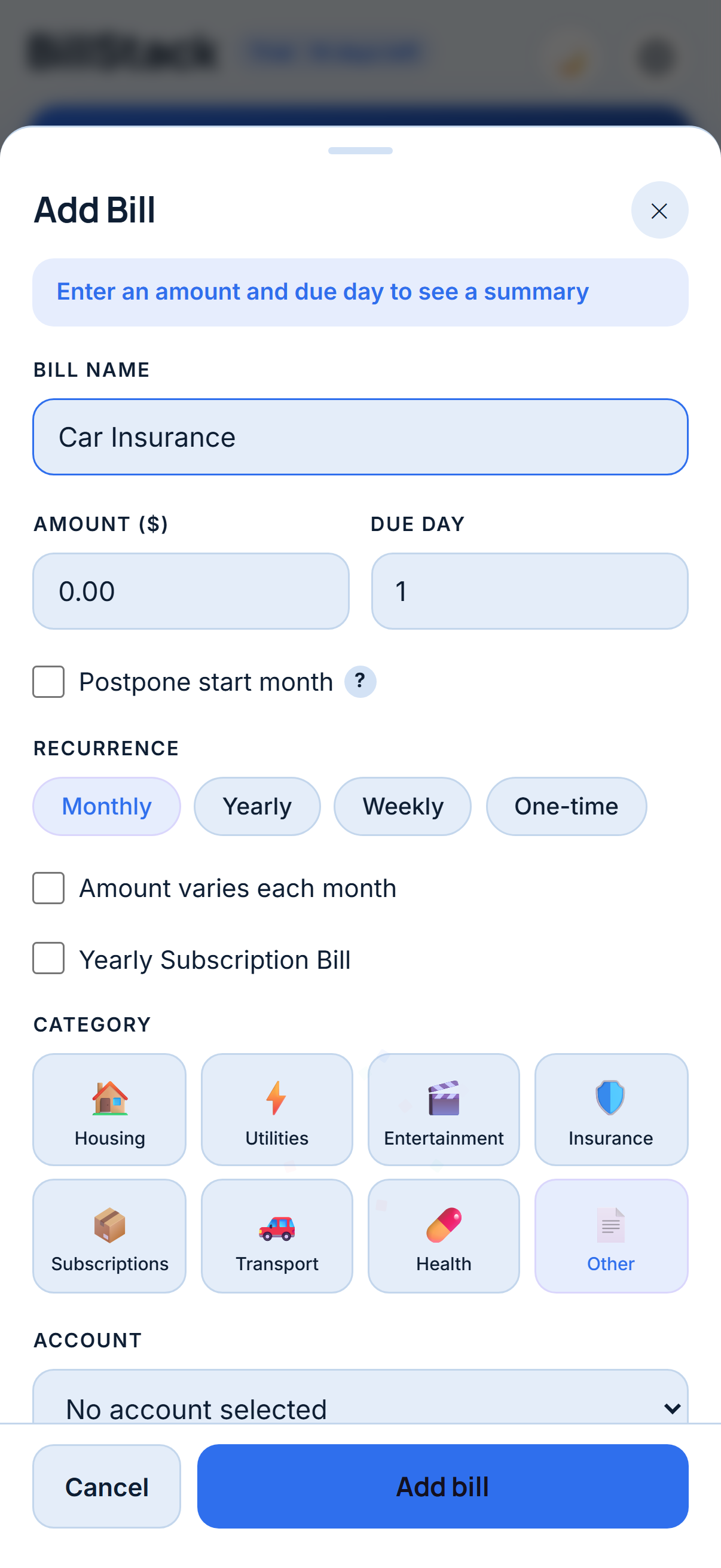
BillStack Add Bill form with name, amount, due day, recurrence, and category fields
Walkthrough

Add a bill

Every bill starts the same way, whether it's fixed like rent or changes every month like electricity.

  1. Tap Add Bill in the bottom nav.
  2. Enter a Bill name and the Amount.
  3. Set the Due day (1–31). Shorter months clamp automatically.
  4. Choose how it repeats: Monthly, Yearly, Weekly, or One-time.
  5. Turn on Amount varies each month for a bill like a utility, or Yearly Subscription Bill for something that only renews once a year.
  6. Pick a category and, optionally, which account it's paid from.
  7. Tap Add bill.
The blue banner at the top updates live as you type, e.g. "$1,250.00 due on the 1st each month," so you can check it resolves the way you expect before saving.
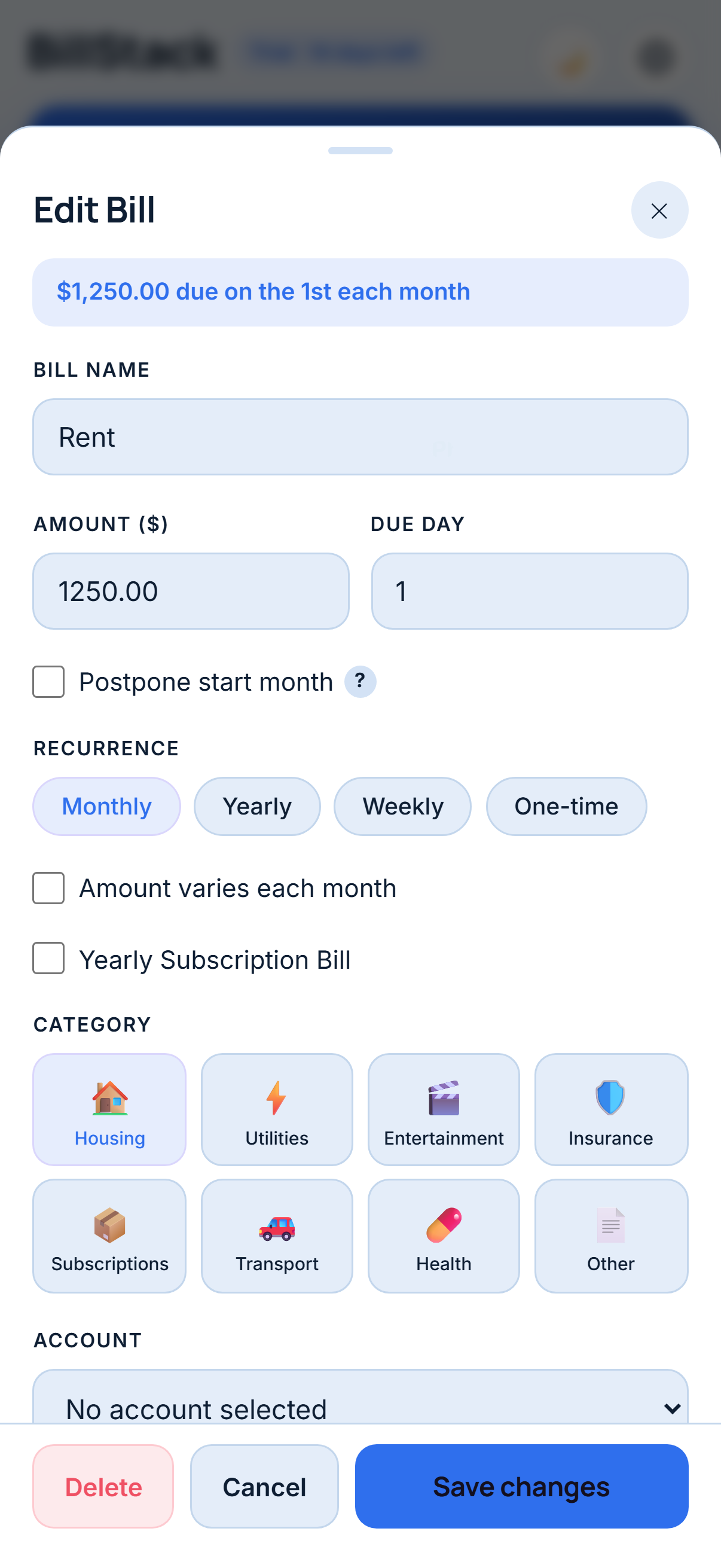
BillStack Edit Bill form pre-filled with Rent's details
Walkthrough

Edit a bill

Anything about a bill can change later, its amount, due day, category, even how often it repeats.

  1. Find the bill on Home, the Calendar, or the full bill list.
  2. Tap the pencil icon on its row.
  3. Change whatever needs updating.
  4. Tap Save changes.
Deleting a bill doesn't erase its history. Past months it was active still show it, it just stops appearing going forward.
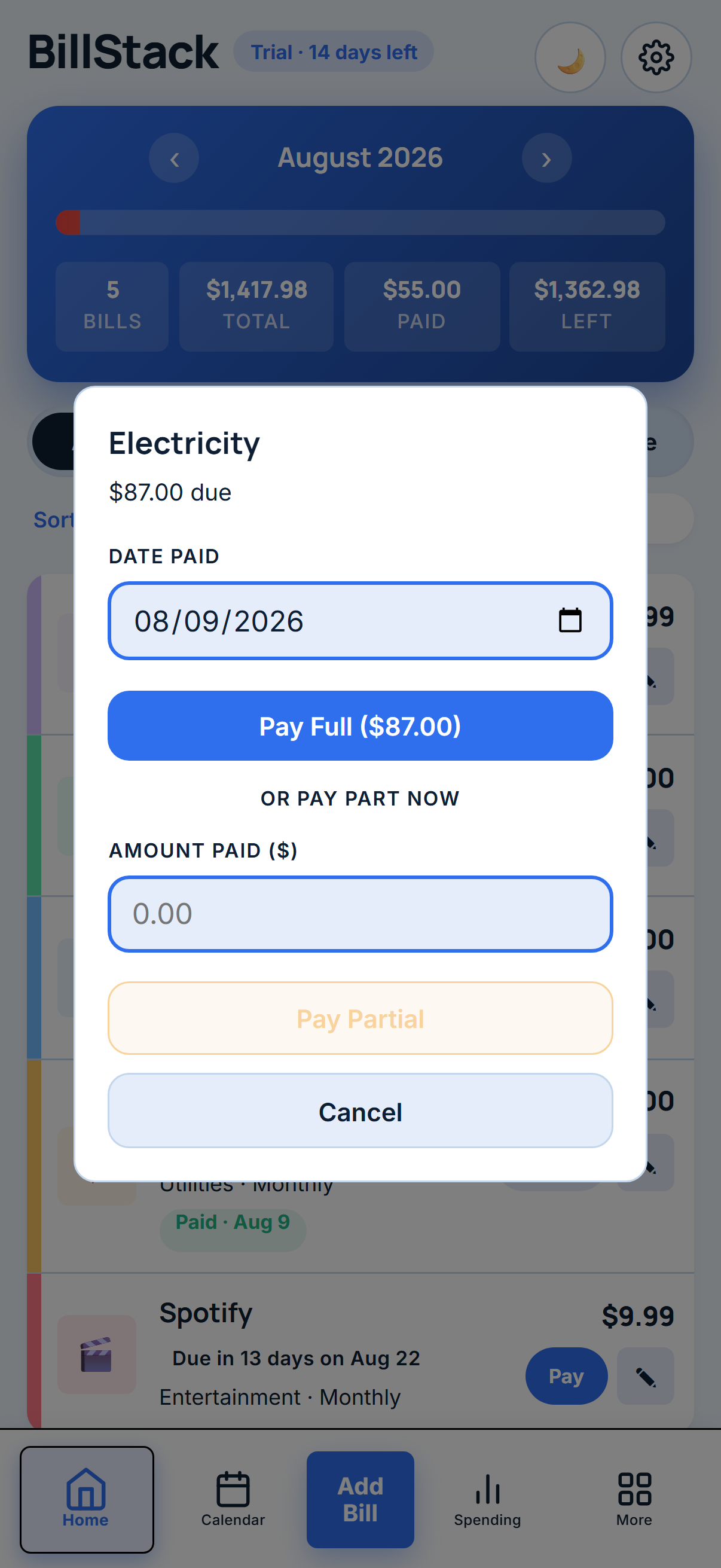
BillStack Pay Bill modal for Electricity, with Pay Full and Pay Partial options
Walkthrough

Pay a bill

Mark a bill paid in one tap, or split the payment across more than one date.

  1. Tap Pay on any unpaid bill.
  2. Confirm the date paid, it defaults to today.
  3. Tap Pay Full to settle it completely, or enter an amount and tap Pay Partial.
  4. A partially paid bill shows exactly how much is paid and how much is left, until it's fully settled.
Want to skip this screen entirely? Turn on One-click mark paid in Settings > General for bills with a fixed amount.
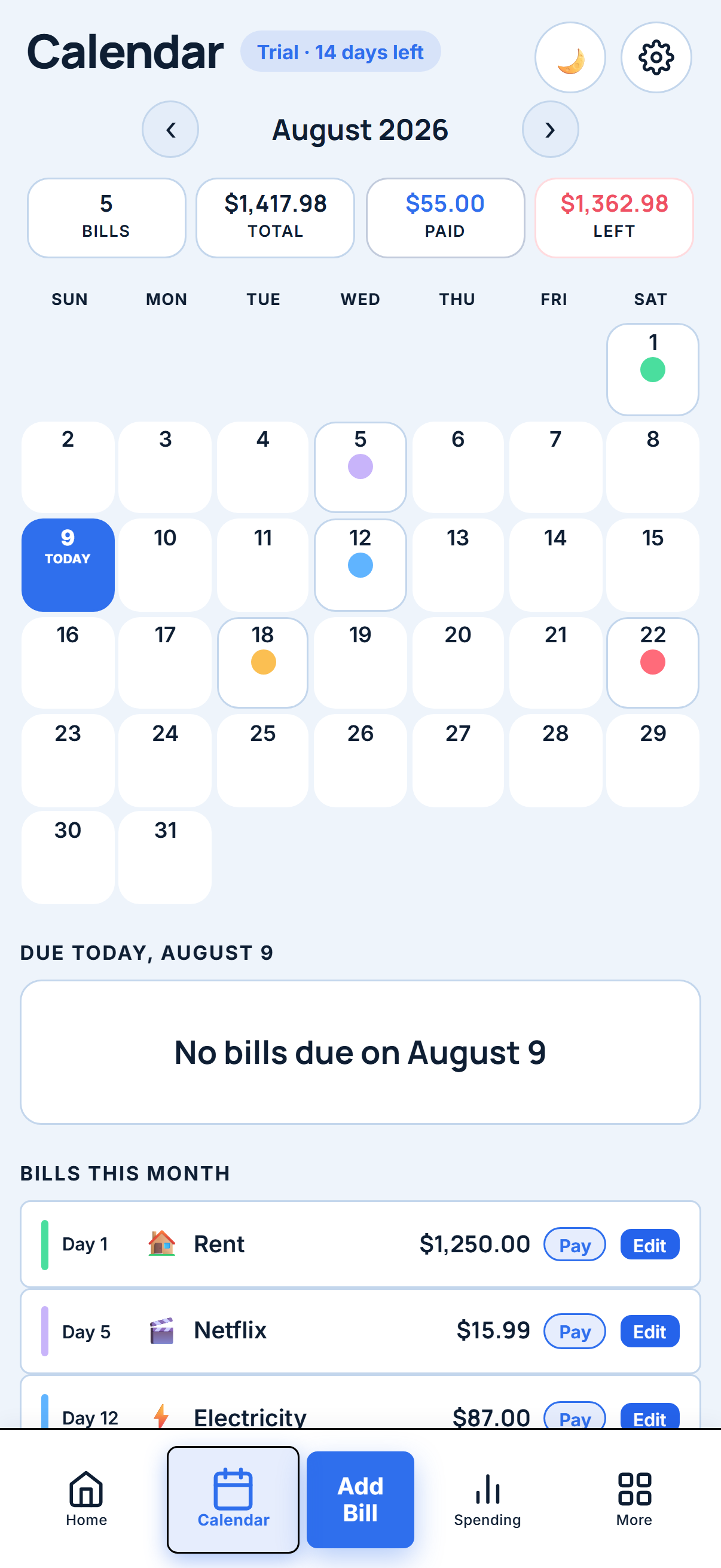
BillStack Calendar tab for August 2026 with due dates dotted across the month
Walkthrough

Use the calendar

See every due date across the month, and act on any bill without leaving the view.

  1. Open the Calendar tab.
  2. Each day with something due shows a colored dot, tap it to see what's due that day.
  3. Use the arrows to browse other months, past months keep their real payment history.
  4. Tap Pay or Edit right on a bill from the day's list.
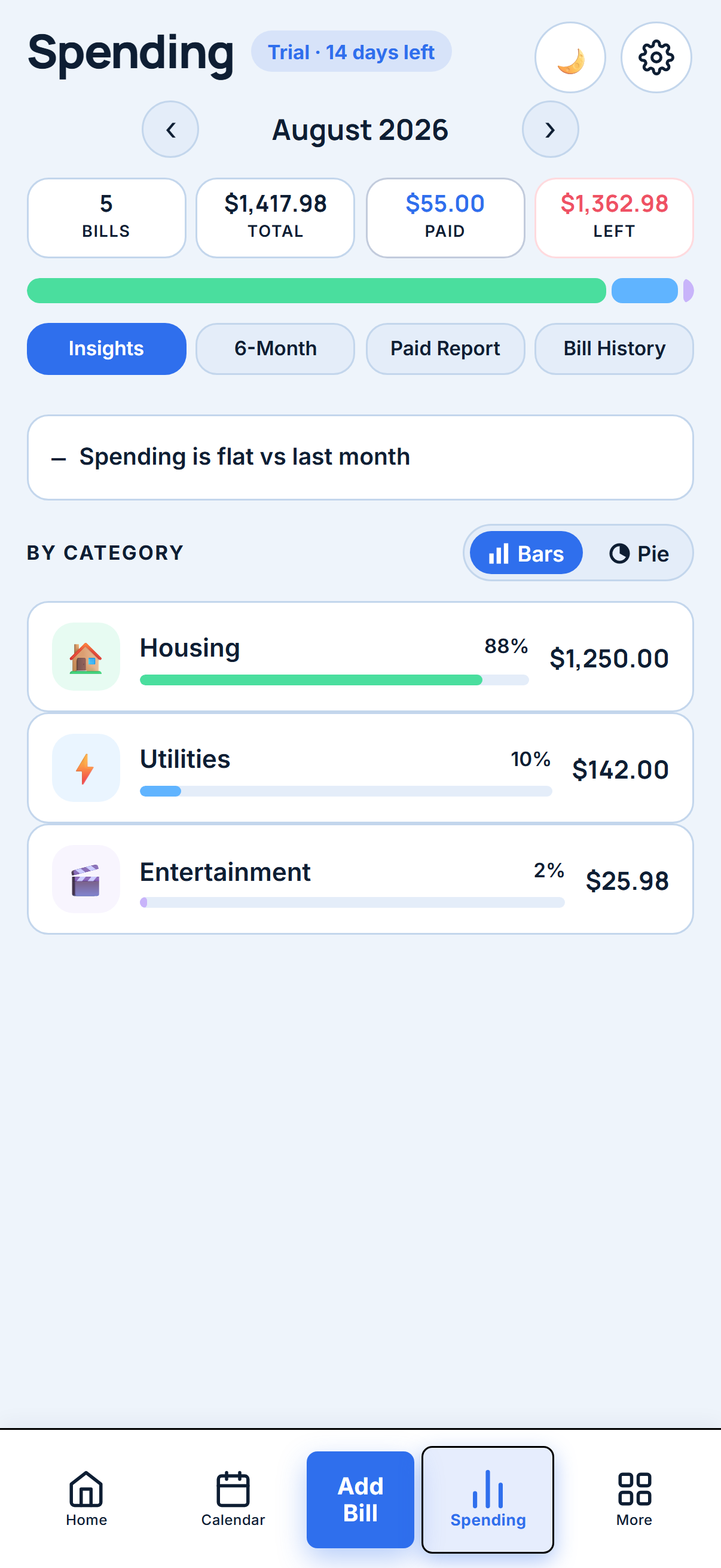
BillStack Spending screen with a category breakdown for housing, utilities, and entertainment
Walkthrough · BillStack Complete

Understand spending

Turn "where did it all go" into an actual number, broken down by category.

  1. Open Spending from the bottom nav.
  2. Insights shows this month's breakdown by category, as bars or a pie chart.
  3. 6-Month shows the trend over time, useful for spotting a category creeping up.
  4. Paid Report and Bill History show exactly what was paid, and when, for any past month.
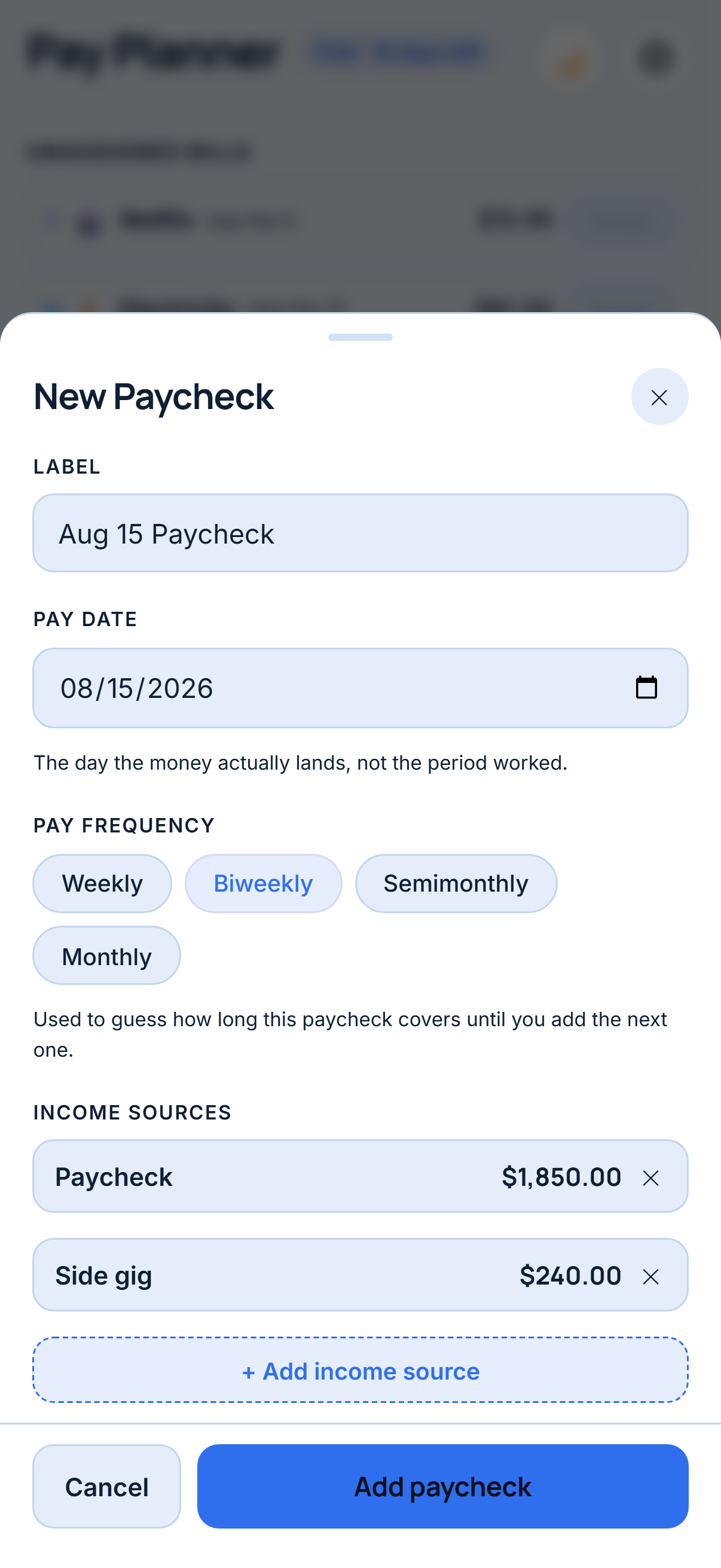
BillStack New Paycheck form with a pay date, frequency, and two income sources
Walkthrough · BillStack Complete

Set up paycheck planning

Line your bills up against real pay dates, so you know what each paycheck needs to cover before it lands.

  1. Open More > Planner, tap + Add Paycheck.
  2. Give it a label and the real pay date.
  3. Tap + Add income source for each source of money landing that paycheck.
  4. Bills due inside that paycheck's window are assigned automatically. Use Assign on any bill in the Unassigned pool to place it manually.
  5. The coverage bar shows what's assigned versus what's left over, and turns red if bills outrun income.
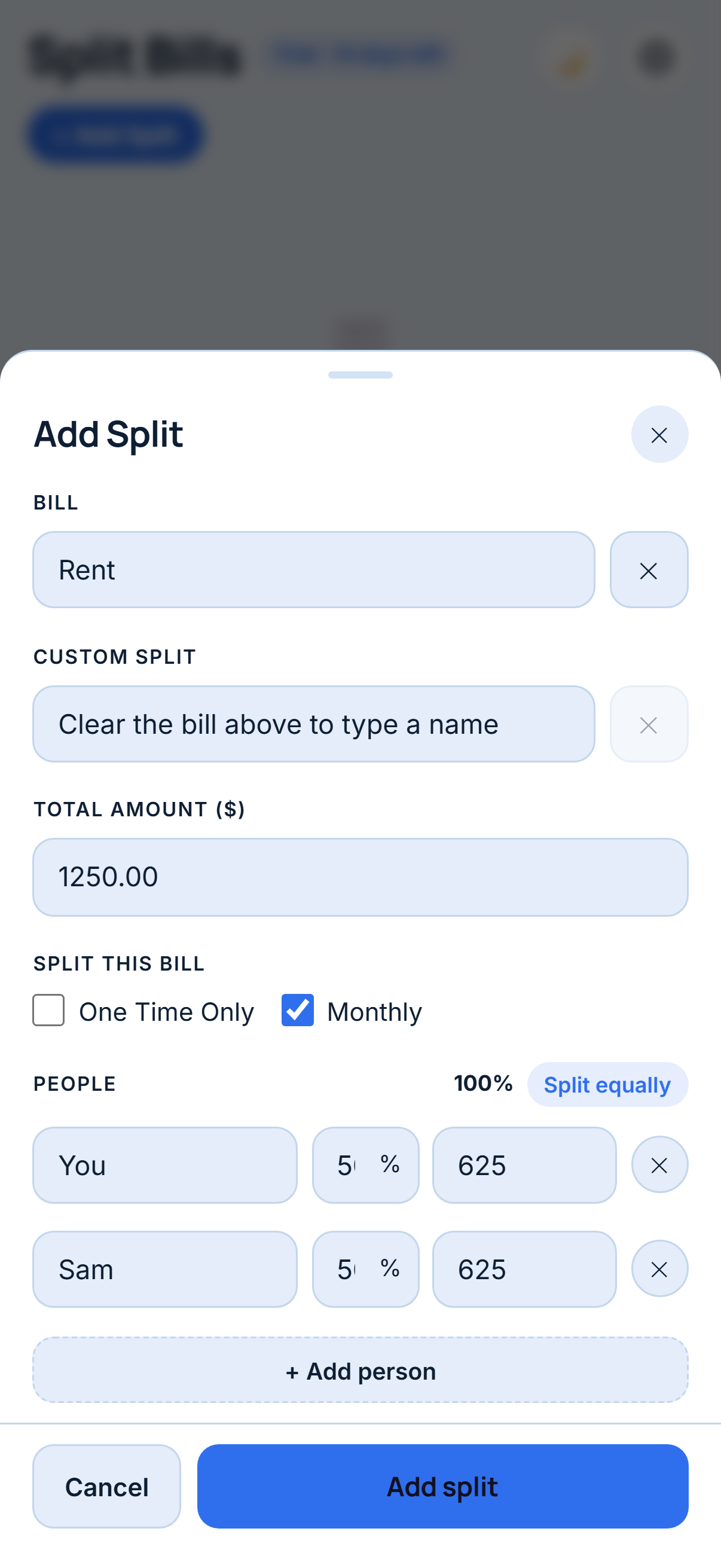
BillStack Add Split form for Rent, split equally between You and Sam
Walkthrough · BillStack Complete

Split a bill

Share a real bill, or a one-off expense, across everyone who owes part of it.

  1. Open More > Split Bills, tap + Add Split.
  2. Pick an existing bill from the dropdown, or type a custom name for something like dinner or groceries.
  3. Enter the total amount, and whether it splits Monthly or One Time Only.
  4. Tap a person field to pick or add someone, then tap Split equally, or set a custom percentage per person.
  5. Tap Add split. Tap anyone's chip later to mark their share paid.
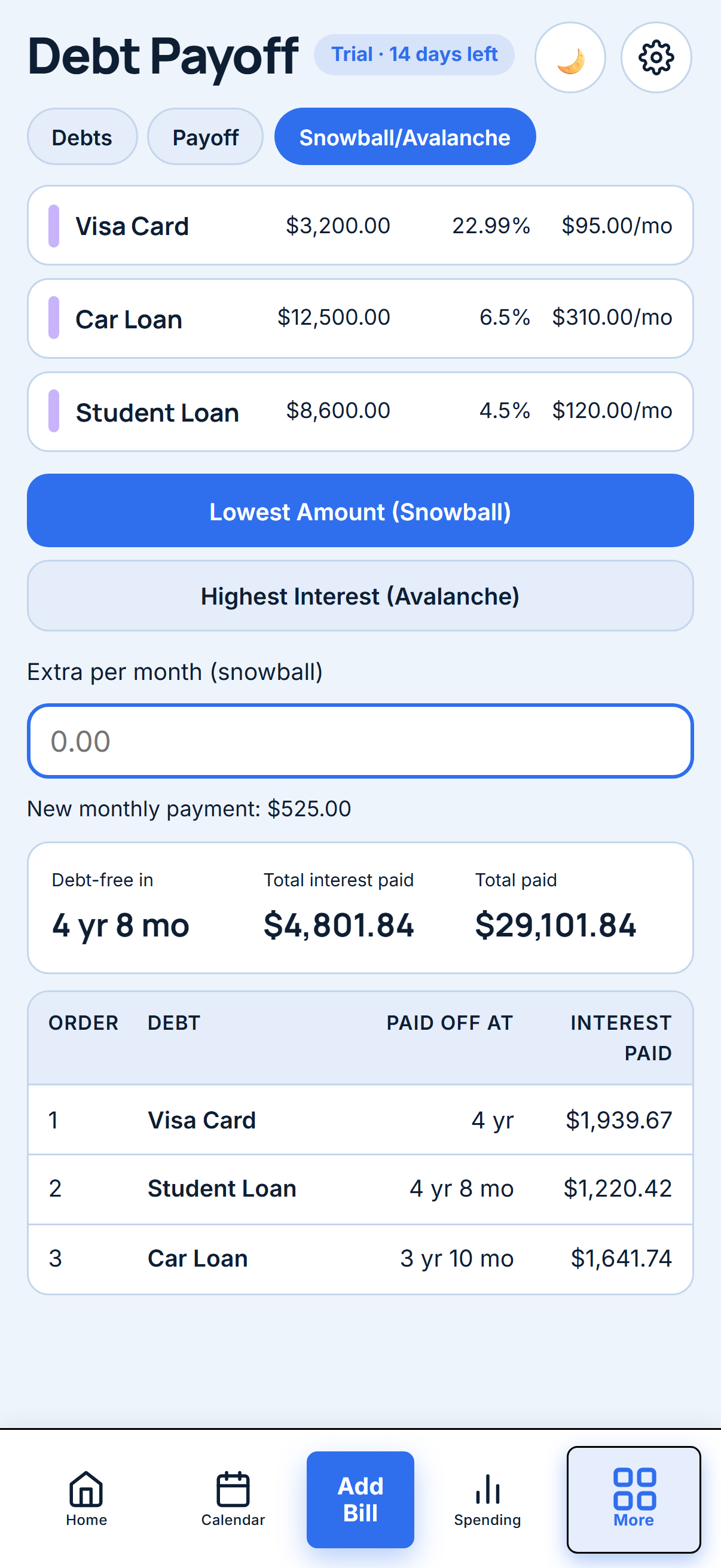
BillStack Snowball/Avalanche strategy tab showing a debt-free date of 4 years 8 months
Walkthrough · BillStack Complete

Use the debt payoff tools

Add every debt once, then let BillStack lay out a real payoff plan.

  1. Open More > Debt Payoff, tap + Add Debt.
  2. Enter its name, current balance, interest rate (APR), and minimum monthly payment.
  3. On the Snowball/Avalanche tab, choose a strategy: lowest balance first, or highest interest first.
  4. Add any extra you can put toward debt each month, the debt-free date updates as you type.
  5. Log a real payment against any debt from its card on the Debts tab.

Still have a question?

Email us directly, we read every message.